
10.0.0.0.1: Why It Does Not Work and the Correct Address (10.0.0.1)
Typed the address with five numbers and got nothing? You are one zero away. This guide shows the right address, where to type it, how to find your gateway, and what to do when the login page still will not open.
By Chris Jorden · Updated 28 November 2026 · How we check facts
Quick answer: 10.0.0.0.1 is a typo. A real IP address has only four numbers, and this one has five, so no browser can open it. Connect to the Wi-Fi first, then type http://10.0.0.1 in the address bar (not in Google search). If that also fails, your gateway uses a different address, and the steps below show how to find it in one minute.
| At a glance | The short version |
|---|---|
| Address you typed | 10.0.0.0.1: five numbers, not valid, never loads |
| Address you need | 10.0.0.1, or the gateway number your phone shows |
| Where to type it | The address bar, with http:// in front |
| Buying vendo time? | You only need the customer portal. No password |
| Changing router settings? | You need the admin login printed on the router or given by the seller |
| Still blank? | Turn off mobile data, VPN and Private DNS, then try again |
On this page
What Is 10.0.0.0.1?
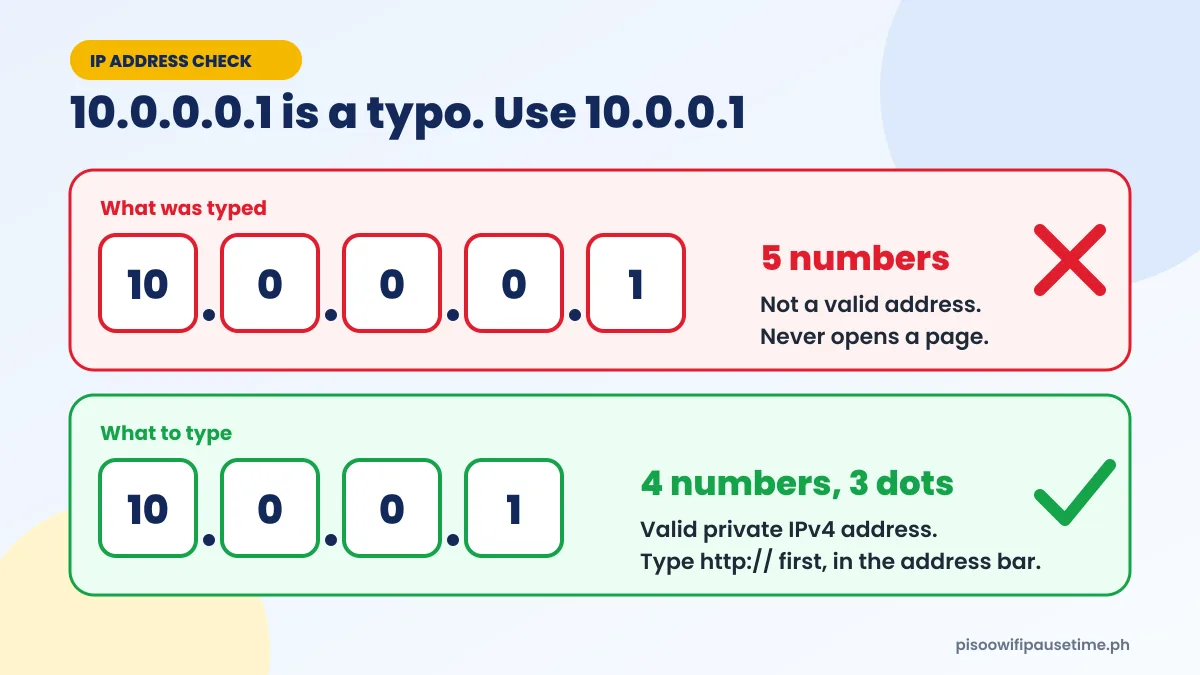
10.0.0.0.1 is not an address at all. It is a mistyped version of 10.0.0.1, the local address many Piso WiFi vendos and some home routers use for their login page. The extra “.0” turns a working address into something your phone cannot read.
That is the whole story, and it is good news. Nothing is wrong with your phone or the Wi-Fi. You just need to type one less zero.
Why 10.0.0.0.1 Can Never Open: An IP Address Has Only Four Numbers
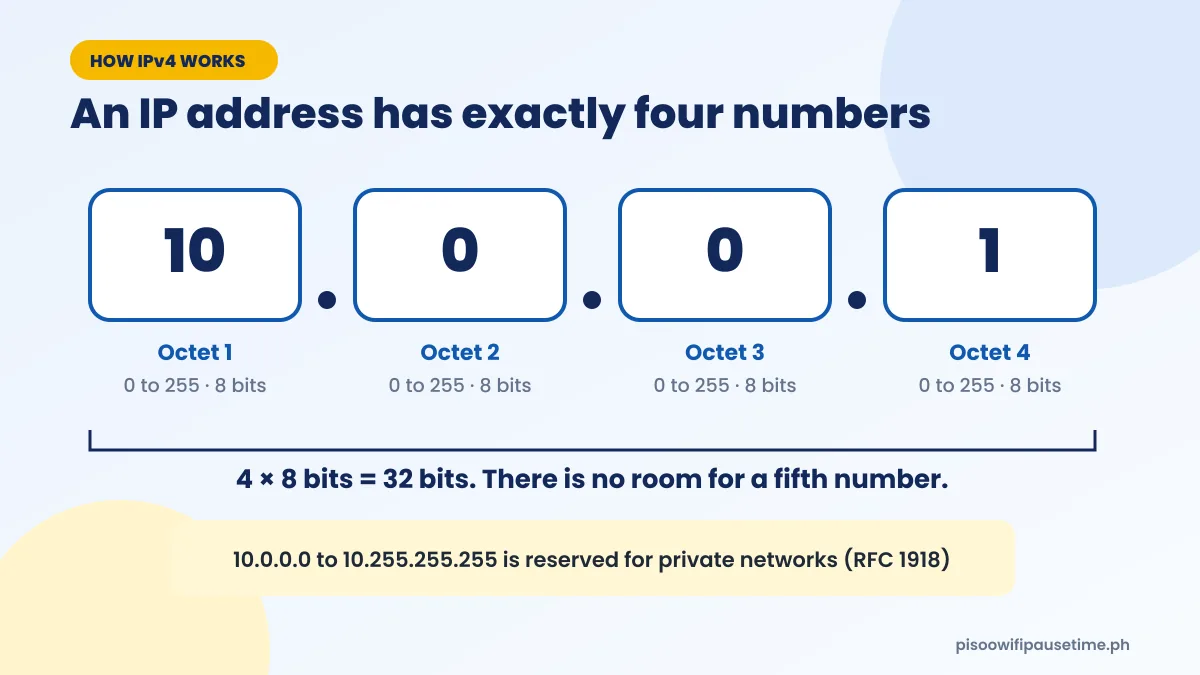
Every address on a normal home or vendo network is an IPv4 address. IPv4 has a fixed shape: four numbers, each from 0 to 255, separated by three dots. Each of those four numbers is called an octet, because it stores 8 bits. Four octets make 32 bits, and that is all the space the format has.
Count the parts of the typo: 10, 0, 0, 0, 1. That is five. There is no fifth slot to put the last number in, so the browser rejects it before it even tries the network.
The real address fits the pattern perfectly: 10, 0, 0, 1. It also sits inside a block that was set aside for private networks. The internet standard RFC 1918 reserves 10.0.0.0 to 10.255.255.255 for local use only, which is why the same address can exist in thousands of homes and sari-sari stores at the same time without clashing.
What Your Browser Shows When You Type 10.0.0.0.1
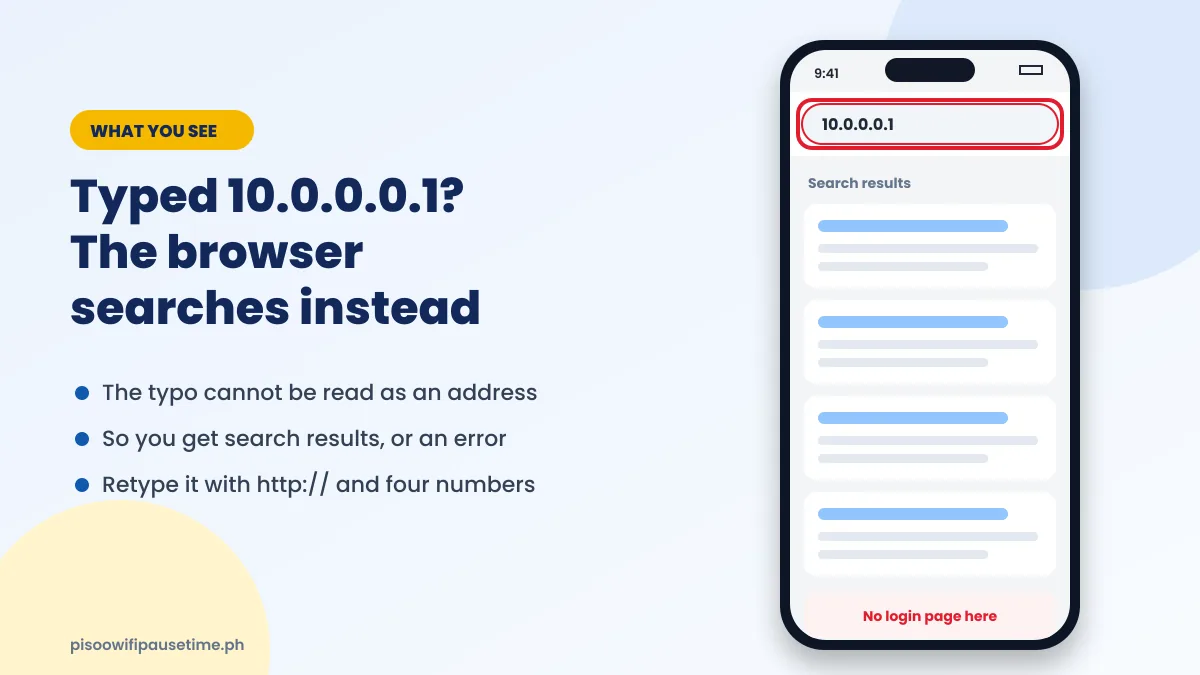
You will usually see one of two things:
- A page of Google results. The browser could not read your text as an address, so it treated it as a search. This is the most common result on Chrome for Android and on Samsung Internet.
- An error page. If you typed http:// in front, the browser may say the address is invalid or that the site cannot be reached.
Neither one means the vendo is broken. Both are the browser saying “I do not know where that is.” Fix the typing first, then look at the network.
Why So Many People Type 10.0.0.0.1
The mistake is so common that it has its own search traffic. A few habits cause it:
- Counting zeros by feel. “Ten, zero, zero, zero, one” sounds right when you say it out loud.
- Keyboard suggestions. Phone keyboards learn what you type. If you typed the wrong version once, it keeps offering it back.
- Copying from stickers, posts and videos. Some vendo stickers, Facebook posts and video titles carry the typo, and people copy it as written.
- Mixing it up with longer addresses. People who have seen 192.168.1.1 or 192.168.254.254 expect more numbers, and add one.
If your phone keeps suggesting the wrong address, delete that suggestion from the browser history so it stops coming back.
10.0.0.0.1 vs 10.0.0.1: Side-by-Side
| The typo | The real address | |
|---|---|---|
| How many numbers | Five | Four |
| Valid IPv4? | No | Yes, private range |
| Opens a page? | Never | Yes, when you are on the right Wi-Fi |
| What it is for | Nothing | Vendo customer portal, vendo admin, some routers |
| What to do | Delete it and retype | Type http:// first, in the address bar |
The table makes one point that competitors skip. The fix is not “try the other one if it does not work.” Only one of these can ever work, and it only works while you are connected to the network that uses it.
Common Typos and What to Type Instead
These mistakes show up again and again in vendo and router help threads. Here is the fix for each.
| What people type | Why it fails | How to fix it |
|---|---|---|
| 10.0.0.0.1 | Five numbers | Delete one of the middle zeros |
| 1.0.0.0.1 | Wrong first number, five parts | Start with 10, keep only two zeros |
| 10.0 0.1 or 10.0.0 .1 | Spaces are not allowed | Remove the space, put the dot back |
| 10.0.01 | Only three parts | Add the missing dot and zero |
| 100.0.0.1 | Different number altogether | First part is 10, not 100 |
| 10.0.0.1.1 | Five parts | Drop the extra “.1” at the end |
| 10.0.0.1.com | “.com” makes it a website name | Remove “.com” |
| https:// in front | Most vendo portals do not use https | Use http:// instead |
| 10,0,0,1 | Commas instead of dots | Use dots |
A quick self-check: count the dots. The right answer always has exactly three, and no spaces.
Remove the wrong suggestion so it stops coming back. In Chrome on Android, start typing the address, then press and hold the wrong suggestion and choose Remove. On iPhone, open Safari’s history and swipe left on the wrong entry to delete it. Samsung Internet works like Chrome: press and hold, then delete. After that, your keyboard will offer the correct version next time.
Typos vs Real Addresses That Only Look Similar
Some numbers look like mistakes but are real gateway addresses used by other equipment. If your phone shows one of these, use it as it is:
| Address | Where you commonly see it |
|---|---|
| 10.10.10.1 | Some vendo builds and hotspot setups |
| 10.0.0.2 or 10.1.1.1 | Some routers and custom vendo setups |
| 192.168.0.1 | Many TP-Link and D-Link home routers |
| 192.168.1.1 | Most PLDT and Converge fiber modems, many routers |
| 192.168.254.254 | Globe At Home modems |
| 192.168.15.1 | PLDT Ultera |
| 192.168.100.1 | Some Converge units |
The ISP numbers come from published guides and can change by model and firmware. The sticker under your modem, or the gateway your phone shows, always wins.
What Is 10.0.0.1?
10.0.0.1 is a private gateway address. Think of it like a room number inside a building: room 101 exists in thousands of buildings, and it only means something once you are inside the right one. “Private” means it only works inside the local network that owns it. “Gateway” means it is the device your phone sends traffic through: the vendo box or the router.
Because it is local, the address has no single owner and no website. The page you see depends on which network you are connected to. On a Piso WiFi it opens the vendo portal. On an Xfinity box in the US it opens Xfinity’s Admin Tool. On a network that does not use it, it opens nothing.
That is also why typing it on mobile data never works. Your carrier’s network is not the vendo network, so there is nothing at that address for you to reach.
Who Uses 10.0.0.1: Piso WiFi Vendos and Home Routers
In the Philippines, the address is best known from coin vendos. Systems such as LPB, AdoPiSoft and PisoFi commonly run their captive portal on it, and so do many JuanFi and custom builds. TP-Link’s Philippine blog uses the same address in its guide for Piso WiFi routers.
That is a lot of people. An Opensignal study reported in February 2026 found that the Philippines leans on Wi-Fi more than any other country in Asia-Pacific, with 83% of people relying on it, well above the regional average of 62%. The government is adding to that too: in February 2026 another ₱5 billion was set aside to expand free public Wi-Fi hotspots.
Outside vendos, a few router makers ship with it as the default. The best-known example is Comcast Xfinity, whose support pages tell customers to open the Admin Tool at that address while on the home network. Some Netgear models use it too. Most Philippine fiber modems from PLDT, Globe and Converge use a 192.168 address instead, which surprises many people who try the “10” number at home.
Which 10.0.0.1 Do You Need? Customer Portal, Vendo Admin or Home Router
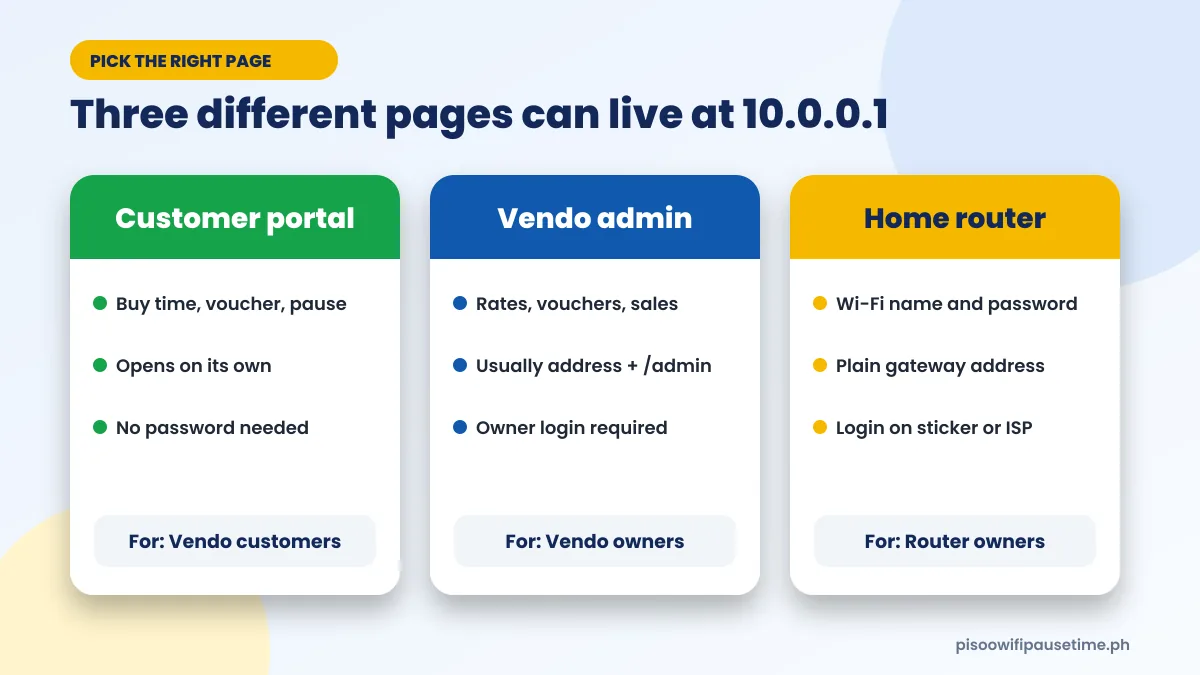
Most of the confusion around this address comes from one thing: three very different pages can live there. Pick your goal below before you type anything.
| Your goal | Page you need | Login needed? | Who has the details |
|---|---|---|---|
| Buy time, use a voucher, check or pause minutes | Vendo customer portal | No | Nobody: it opens on its own |
| Change rates, make vouchers, see sales | Vendo admin panel | Yes | The vendo owner or seller |
| Change your home Wi-Fi name or password | Home router admin | Yes | Router sticker, ISP or Xfinity app |
Important: If you are a customer at a vendo, you never need a username or password. Any page asking you for an admin password is not meant for you. If you are the owner, the admin page is usually the same address plus a path like /admin, but that depends on the system, so check with whoever sold or installed it.
How to Open 10.0.0.1 Correctly (5 Steps)
Do a 30-second check first. Most failed logins come from one of these, not from the vendo:
- You are connected to the vendo or router Wi-Fi, not a saved network nearby.
- Mobile data, VPN and any ad-blocking DNS app are off.
- Battery saver or data saver is not limiting background connections.
- You are close enough to the box for a strong signal.
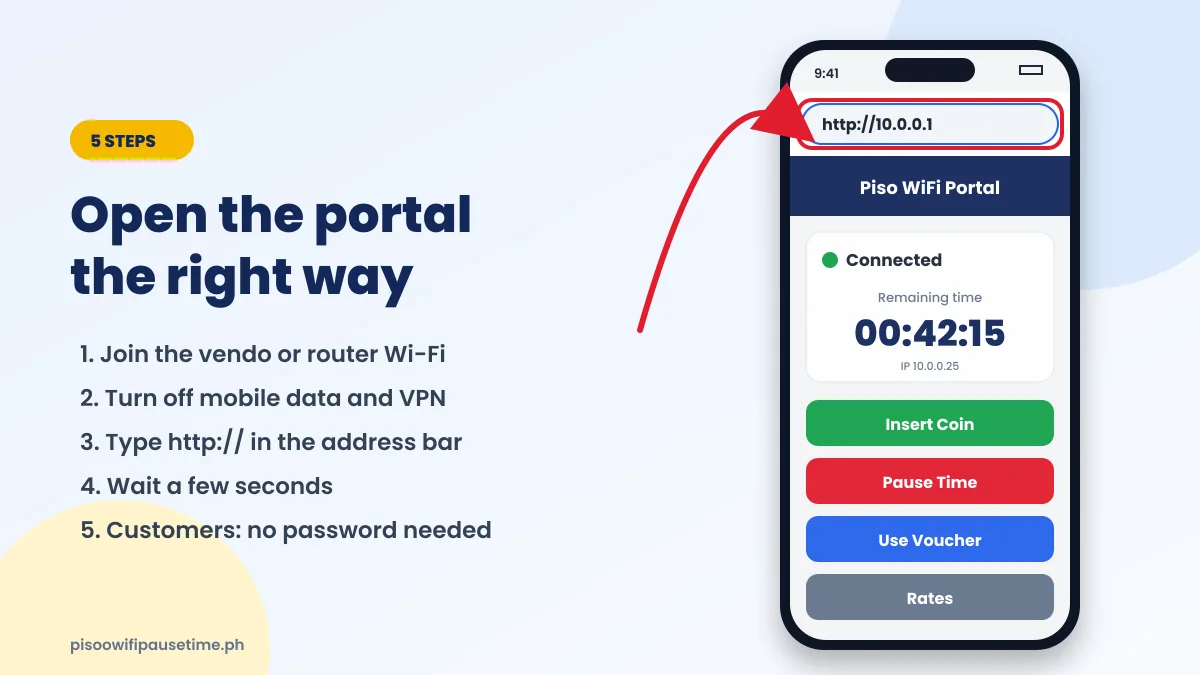
Then follow these five steps:
- Join the right Wi-Fi. Connect to the vendo’s network (often the store or brand name) or your home router. Wait until your phone shows it as connected.
- Turn off mobile data. If it stays on, your phone may decide the Wi-Fi “has no internet” and send your request out through your SIM instead, where the portal does not exist.
- Use the address bar, not the search box. Tap the top bar of Chrome, Safari or Samsung Internet and type http:// followed by the address. Typing http:// stops the browser from turning it into a Google search.
- Wait a few seconds. Vendo boxes are small computers. On a busy afternoon the portal can take five to ten seconds to load.
- Use the right page. Customers pay, pause or check time on the portal. Owners add the admin path and log in. Nobody else should be typing an admin password.
On Android and Samsung Phones
Android has looked for login pages on public Wi-Fi since Android 5.0. When it finds one, you get a “Sign in to Wi-Fi network” notification. Tap it and the portal opens in a small built-in window. If the notification never comes, open Chrome and type the address yourself.
Android 11 and later also support a newer captive portal standard, so on networks that use it the sign-in prompt can appear right after you connect.
Two settings commonly block the portal on Android:
- Private DNS. On Samsung, go to Settings > Connections > More connection settings > Private DNS and choose Off or Automatic while you sign in. A custom provider such as AdGuard or NextDNS can stop the sign-in page from loading.
- Randomized MAC. In the Wi-Fi network’s details, the “MAC address type” can be set to Randomized MAC or Phone MAC. More on this below, because it affects your paid time.
On iPhone and iPad
iPhones usually show a pop-up sheet with the portal as soon as you join an open network. If you close it by mistake, open Safari and type the address with http:// in front. If Safari says it cannot open the page, turn off any VPN, iCloud Private Relay for that network, and content blockers, then reload.
On a Windows Laptop or Mac
Laptops do not always pop up the portal. Windows may show “No internet, secured” or “Action needed” under the network name. Click it, or open Edge, Chrome or Safari and type the address yourself. If the laptop has a wired connection as well, unplug it while you sign in, so the request goes over the vendo Wi-Fi.
Private Wi-Fi Address (MAC) and Your Paid Time
Important: This is the problem behind many “my time disappeared” complaints, and few guides explain it.
The vendo has no idea who you are. What it tracks is your device’s Wi-Fi hardware address, called the MAC address. Your paid minutes are saved against that address. If the address changes, the machine treats you as a brand-new customer with zero time.
Modern phones change this address on purpose, for privacy:
- iPhone and iPad (iOS 18 and later): each network has a Private Wi-Fi Address setting with three choices: Off, Fixed and Rotating. Apple says a rotating address changes about every two weeks. Go to Settings > Wi-Fi, tap the (i) next to the vendo network, and choose Fixed for that network.
- Android and Samsung: open the vendo network’s settings and set the MAC address type to Phone MAC (or “Use device MAC”) for that network only.
Important: Changing it only for the vendo network keeps your privacy everywhere else. Our main guide walks through the MAC address trap with screenshots.
How to Find Your Real Gateway IP Address
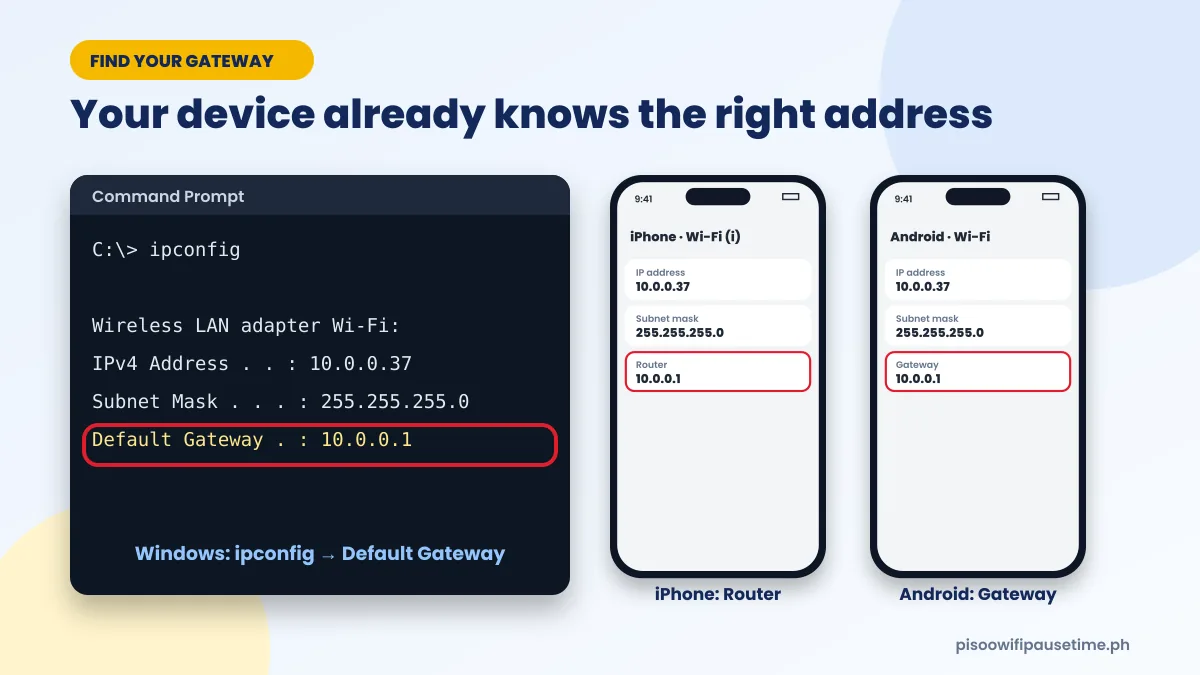
If the address will not open even after the fixes above, your network may simply use a different gateway. Your device already knows the right number. Here is where to look:
| Device | Where to find the gateway |
|---|---|
| Windows | Press Windows + R, type cmd, press Enter, then type ipconfig. Read the line “Default Gateway.” |
| Mac | System Settings > Wi-Fi > Details next to the network > TCP/IP > Router |
| iPhone / iPad | Settings > Wi-Fi > (i) next to the network > Router |
| Android | Settings > Wi-Fi > tap the network or its gear icon > look for Gateway (some phones show it under Advanced or IP settings) |
You may see two kinds of address. The one with dots and four numbers is the one you want. A long one with colons and letters, such as one starting with fe80::, is an IPv6 address. Ignore it for this job.
If the gateway line is blank, your device has not finished joining the network. Forget the Wi-Fi, join again, and check once more.
Type whatever number you find, with http:// in front, into the address bar. That number is the correct address for that network, even if it looks nothing like the usual vendo number.
10.0.0.1 Piso WiFi Portal: What Customers Can Do
The customer portal is the page that opens on its own when you join a vendo network. Layouts vary by system, but most show the same handful of things: a status light, your remaining time, and buttons to insert coins, enter a voucher, pause, and check rates.
You can use it without any account. There is nothing to install, and there is no official app you need to download for it.
The status line tells you where you stand. The wording changes between systems, but it usually means one of these:
| Status | What it means |
|---|---|
| Insert coin / Not connected | You have no time. Pay to start |
| Connected / Online | Your time is running and the internet works |
| Paused | Your countdown is frozen. Resume to go online again |
| Expired / Time’s up | Your time ran out. Pay again to continue |
Insert Coins, Use a Voucher or Pay With GCash
- Coins: tap Insert Coin on the portal first, then drop your coins within the countdown shown on screen. If you drop them before tapping, the box may not know whose phone to credit.
- Voucher: tap the voucher option, type the code exactly, and submit. Codes are usually case-sensitive and can only be used once.
- E-wallet: newer vendos show a GCash or Maya QR. Scan it from your wallet app and wait for the portal to update.
Owners set the rates, so prices differ from store to store. Read the rate card on the portal or on the machine before you pay.
Check Your Remaining Time
Your remaining time shows on the portal, usually as a countdown in hours, minutes and seconds. If it looks wrong, refresh the page once. If it still looks wrong, check that you are on the same phone and the same Wi-Fi address you paid with. A changed MAC address is the usual reason for a “missing” balance.
Pause and Resume Your Time
Many vendos have a Pause button that freezes your countdown so you do not pay for time you are not using. You tap Pause before you leave, then come back on the same phone and tap Resume. The owner decides whether the button appears and how long a pause can last.
Pausing has its own rules, limits and fixes, so we cover it in full in our Piso WiFi pause time guide.
10.0.0.1 Admin Login for Vendo Owners and Router Owners
The admin page is for the person who owns the equipment. Customers do not need it and cannot get much from it.
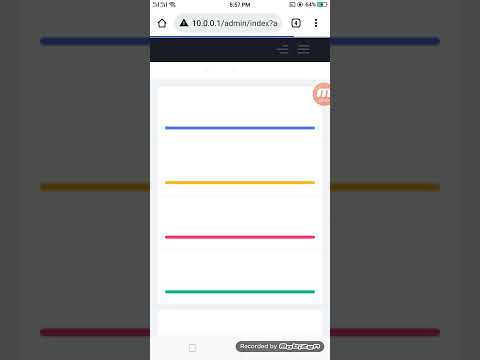
To reach it, connect to the vendo or router network, then open the admin address your system uses. On many vendo systems that is the portal address followed by /admin. Home routers usually show the login page at the plain address. Log in with the username and password the seller, installer or sticker gave you.
The short video below, made by a Filipino vendo installer, shows the login on a real phone. It is in Tagalog, and the screens may look a little different on your system.
Vendo Admin Dashboard: What You Can Manage
Once you are in, most vendo dashboards cover the same areas, even if the menus have different names:
- Sales and income: totals per day or month, coin counts, and sometimes e-wallet payments.
- Connected users: which devices are online, how much time each has, and buttons to kick or block a device.
- Portal settings: the banner, the welcome text and the buttons customers see.
- Network settings: the Wi-Fi name (SSID), channel and internet line settings.
- System: updates, backups, restart and the admin password.
Take five minutes to find each area the first time you log in. It saves panic later when a customer is waiting.
Set Rates, Vouchers and Pause Rules
The money settings live together on most systems:
- Rates: how many minutes each coin buys. A lot of operators make ₱5 and ₱10 slightly better value than ₱1, so people stay online longer. Our Piso WiFi rates table shows typical setups.
- Vouchers: create codes in batches, set the time each one gives, and print or send them. Useful for regulars and for selling time when the coin slot is jammed.
- Pause rules: switch the Pause button on or off and set how long a session may stay paused before it expires. See the owner settings for pause time for suggested limits.
Write your rates on a card on the machine as well as on the portal. Customers trust what they can see before they pay.
Control Bandwidth and Connected Devices
A single fiber line split across 20 phones will feel slow for everyone. Most vendo systems let you cap the speed per user, so one heavy download does not ruin the session for the rest. Set a sensible limit, then test from your own phone at a busy hour. You can also block a device that is abusing the network, using the connected users list.
Lock Down the Admin Page in Five Minutes
Most vendo break-ins are not clever. Someone guesses a default password or reads it off a sticker. Do these once:
- Change the admin password to something long that is not your store name or phone number.
- Remove the password from any sticker or card on the machine.
- Do not share the admin login with staff who only collect coins.
- Log out of the admin page on shared phones and laptops.
- Check the connected users list now and then for devices you do not recognise.
Keep the Vendo Running: Updates, Backups and Uptime
- Update the system when your seller or the software maker releases a fix. Updates often close security holes.
- Back up your settings after you finish setting rates and vouchers, if your system offers it. A power surge can wipe a cheap SD card.
- Protect the power. Brownouts are a fact of life in many areas. A small UPS or AVR keeps the box from rebooting in the middle of customer sessions.
- Restart on a schedule if the box tends to slow down after a few days.
Home Router Admin: Change Wi-Fi Name, Password and Block Users
On a home router, the steps are similar across brands:
- Open the router’s address in your browser while connected to it.
- Log in with the admin details from the sticker or your ISP.
- Find the Wireless, WLAN or Wi-Fi section.
- Change the network name (SSID) and the password, then save. Every device will need the new password to reconnect.
- To block someone, look for Device Management, Access Control or MAC Filter, and block their device.
Brand notes worth knowing:
- Xfinity (US): the Admin Tool is at this same address, but newer setups require you to turn on “Admin Tool online access” in the Xfinity app first. The username is admin, and the password is on the device’s sticker if you have never changed it.
- TP-Link, D-Link and Netgear: most use a 192.168 address or a web name such as tplinkwifi.net or routerlogin.net. Check the label.
- PLDT, Globe and Converge: the modem’s gateway is usually a 192.168 address (see the table above). Some settings are locked by the ISP and can only be changed through their app or hotline.
Default Admin Passwords: Why We Do Not Publish Them
Many sites list “default” passwords for vendo systems and routers. We do not, for three reasons. Lists copied between sites are often wrong. Defaults change between versions and sellers. And publishing them helps the wrong people get into machines that owners forgot to secure.
Here is where to find yours:
- On the device: a sticker on the bottom or back of most routers.
- From the seller or installer: vendo boxes usually come with the admin login written on a card or sent by chat.
- In the manual or official support page for your model.
Whatever you find, change it on day one, and do not share it with staff who only need to collect coins.
Forgot the Admin Password? How Resets Work
- Home routers: hold the small reset button for about 10 to 15 seconds with a pin while the router is on. It returns to factory settings, including the sticker password. You will lose your Wi-Fi name, password and any custom settings, so you will need to set them up again.
- Vendo boxes: there is often no simple reset button. Recovery usually means re-flashing the system or asking the seller to reset it, and you may lose your rates, vouchers and sales records. Contact your seller before you try anything.
10.0.0.0.1 or 10.0.0.1 Not Working? 9 Fixes
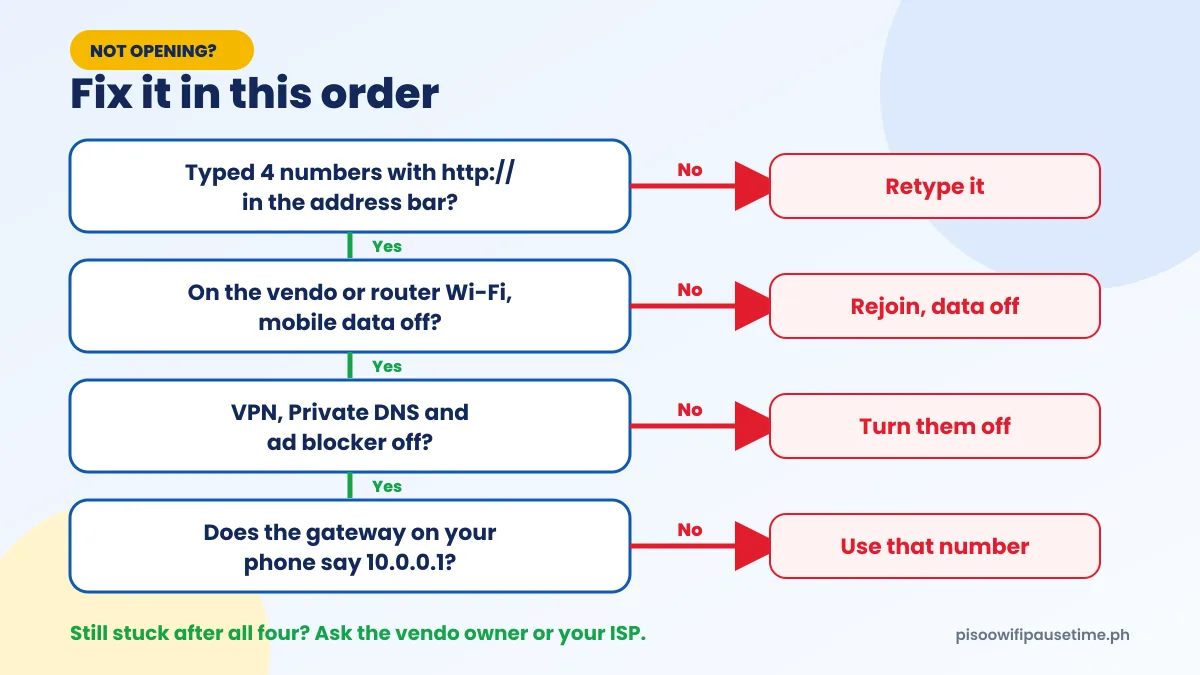
Start with the table. Most problems are solved by the first fix that matches what you see.
| What you see | Most likely cause | Fix |
|---|---|---|
| Google results instead of a login page | Typo, or typed in the search box | Retype with http:// in the address bar |
| “This site can’t be reached” | Not on the right Wi-Fi, or mobile data on | Rejoin the Wi-Fi, turn off data |
| Page keeps loading | Busy or restarting vendo | Wait, then reload once |
| Connected, but no portal | Sign-in prompt missed or blocked | Open the address manually |
| Security or https warning | Browser forced https | Use http:// |
| Page will not load at all | Private DNS, VPN or ad blocker | Turn them off while signing in |
| Login rejected | Customer trying the admin page, or wrong admin details | Customers skip login; owners check sticker or seller |
| Voucher refused | Wrong, used or expired code | Retype it, then ask the owner |
| Slow after login | Many users or a speed cap | Move closer, try off-peak, tell the owner |
The Page Opens Google Search Instead
You typed into the search box, or the browser could not read the text as an address. Clear the bar, type http:// and the four-number address, and press Go. If your keyboard autocompletes the wrong version, delete that suggestion from your history.
“This Site Can’t Be Reached” or It Keeps Loading
Check the Wi-Fi first. Your phone may have dropped back to mobile data or jumped to a saved network nearby. Rejoin the vendo or router network, turn off mobile data, and reload. If the page loads very slowly, the box may be busy or restarting after a brownout. Give it a minute, then try once more rather than tapping reload over and over.
“Connected, No Internet” Before You Pay
This one scares people, but it is normal. Before you pay, the vendo lets your phone join the Wi-Fi but blocks the internet. Your phone sees that and shows “Connected, no internet” or a small warning icon. Keep the Wi-Fi on, open the portal, and pay. The warning clears once your time starts.
Some phones offer to switch to mobile data at this point. Say no, or the portal will not load.
Stuck on “Obtaining IP Address”
Your phone is asking the box for a local address and not getting one. This happens when the vendo has too many devices connected, when the signal is weak, or when the box is restarting. Move closer, turn Wi-Fi off and on, or forget the network and join again. If it keeps happening to everyone, the owner may need to restart the box or raise the number of devices it can hand addresses to. Our pause guide has more on this error.
Connected to Wi-Fi but No Portal Appears
Phones only show the sign-in prompt for a few seconds, and it is easy to miss. Open the browser and type the address yourself. If it still does not appear, forget the network, rejoin it, and wait for the prompt again.
HTTPS or Security Warning
Most vendo portals and many routers serve their login page over plain http. If you type https://, or your browser adds it for you, you may get a certificate warning or a blank page. Type http:// on purpose. On a router you own, it is fine to continue past a certificate warning for its own address. Never type passwords on a page you reached through a strange link.
Private DNS, VPN or Ad Blocker Is Blocking It
These tools send your traffic around the local network, so the portal never gets the request. Turn off your VPN app, set Private DNS to Off or Automatic, and pause any ad blocker or DNS app while you sign in. You can turn them back on after you are online.
Login Details Are Rejected
If you are a customer, you are on the wrong page: the customer portal does not ask for a password. If you are the owner, check caps lock, then try the details from the sticker or the seller. Too many wrong tries can lock some admin pages for a few minutes.
Voucher Not Accepted or Session Will Not Start
Retype the code slowly and check for letters that look like numbers, such as O and 0. Codes can expire or be single-use. If the code is right and still refused, or you paid coins and no time was added, ask the owner. They can see the payment and the voucher status in the admin panel.
The Gateway Is Not 10.0.0.1
Some networks use a different address. Find the real one using the gateway steps above, then type that number instead. This is common at home, where Philippine fiber modems usually sit on a 192.168 address.
Slow Internet After Logging In
Piso WiFi shares one internet line between everyone connected. Speed drops when many people are online, when you are far from the box, or when the owner sets a per-user cap. Move closer, avoid peak hours like after school, and close apps that download in the background. If it is always slow, tell the owner. They can check the line and the speed settings.
Are Sites Named Like 10.0.0.0.1 or 100001… Official?
No. An IP address cannot have an official website. Sites with names built from these numbers are independent blogs, including this one. None of them is run by the vendo makers, the router brands or your internet provider.
That matters for one reason: the real page lives on your local network, not on the internet. You never need to visit a website to log in to your vendo or router.
Safety Tips: Never Type Router Passwords Into a Website
- Type the address yourself while connected to the Wi-Fi. Do not follow links from ads, posts or messages that ask you to “log in to your router.”
- Check the address bar. A real local login page shows a bare number, not a website name.
- Never enter admin passwords on any page that loaded over mobile data. That page is on the internet, not on your router.
- Skip “free Piso WiFi time” apps and codes. They are usually scams or malware, and using them can get your device blocked from the vendo.
- On any public Wi-Fi, use sites with https for banking and GCash, and avoid entering passwords on pages that look off. We explain what a vendo owner can and cannot see in our main guide.
Frequently Asked Questions
Is 10.0.0.0.1 a Virus or a Hack?
No. It is just a mistyped number. Typing it cannot harm your phone, because it never connects to anything. The only risk is clicking a random search result that promises to “log you in.” Close those and type the real address yourself.
What Does /admin After the Address Mean?
It is the path many vendo systems use for the owner’s login page. The customer portal sits at the plain address, and the owner adds /admin to reach the dashboard. Customers do not need it, and the exact path can differ between systems.
Why Does the Same Address Open a Different Page at Home?
Because each network has its own device at that number. At the vendo it reaches the vendo box. At home it reaches your router, if your router uses it at all. The address is the same, but the network behind it is different.
How Do I Go to Piso WiFi Pause Time?
Connect to the vendo Wi-Fi, open the customer portal in your browser, and tap the Pause button if your vendo has one. The full steps, limits and fixes are in our pause time guide.
Is 10.0.0.1 Free WiFi?
No. It is a local address, not a network. On a Piso WiFi it opens the page where you pay for time with coins, a voucher or an e-wallet. Free public Wi-Fi in the Philippines comes from programs such as the DICT’s Free Wi-Fi for All sites, which use their own login pages.
What Is 10.0 0.1 in Chrome?
It is the right number with a space in the wrong place. Chrome cannot read an address with a space in it, so it searches Google for the text instead. Remove the space and type it with http:// in front.
Do I Need a Password to Log In to 10.0.0.1?
Customers do not. The vendo portal opens without any login. Owners need an admin username and password to reach the admin panel, and home router owners need the login from the router sticker or their ISP.
Is LPB the Same as LBP or LBS Piso WiFi?
People usually mean LPB. “LBP” and “LBS” are common misspellings in searches and posts. LPB is a vendo management system, and like many others it runs its portal on the same local address.
Can Two Phones Share One Session?
Usually not. Paid time is tied to one device’s address. A few systems offer vouchers or member accounts that can be used on another device, but on most vendos each phone pays for itself.
Does Turning Off Wi-Fi Save My Time?
On most vendos, no. Turning off Wi-Fi does not stop the countdown. Use the Pause button if the vendo has one. Our pause guide explains the difference.
Can I Move My Time to Another Phone?
Not on most machines, because the time is tied to the first phone’s address. If you bought a voucher, some systems let you use the remaining time on another device. Ask the owner how their system handles it.
Sources
- IETF: RFC 1918, Address Allocation for Private Internets
- IANA: Private-use IP addresses
- Apple: Use private Wi-Fi addresses on Apple devices
- Apple: Wi-Fi privacy with Apple devices
- Android Developers: Captive portal API support
- Xfinity: Allow Admin Tool access
- Xfinity: Change WiFi settings in the Admin Tool
- TP-Link Philippines: Piso WiFi router login guide
- TechPilipinas: PLDT admin login
- TechPilipinas: Globe admin login
- The Freeman: Philippines leads Asia-Pacific in WiFi usage (Feb 2026)
- Philstar: Expanded free public WiFi program gets P5 billion funding (Feb 2026)